HomeStore

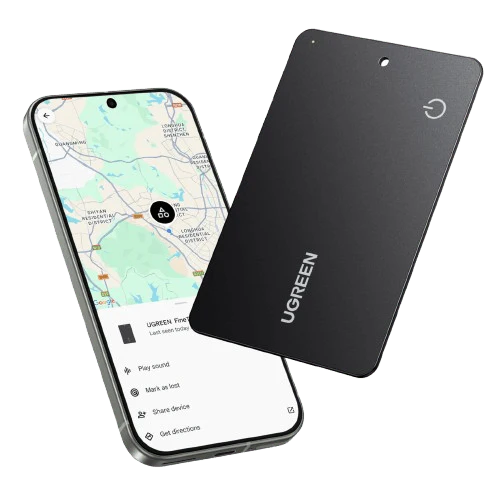
UGREEN FineTrack Slim G Smart Finder (Android Only)

Product image 1
Product image 2
Product image 3
Product image 4
Product image 5
Product image 6
Product image 7
Product image 8
Product image 9

UGREEN FineTrack Slim G Smart Finder (Android Only)

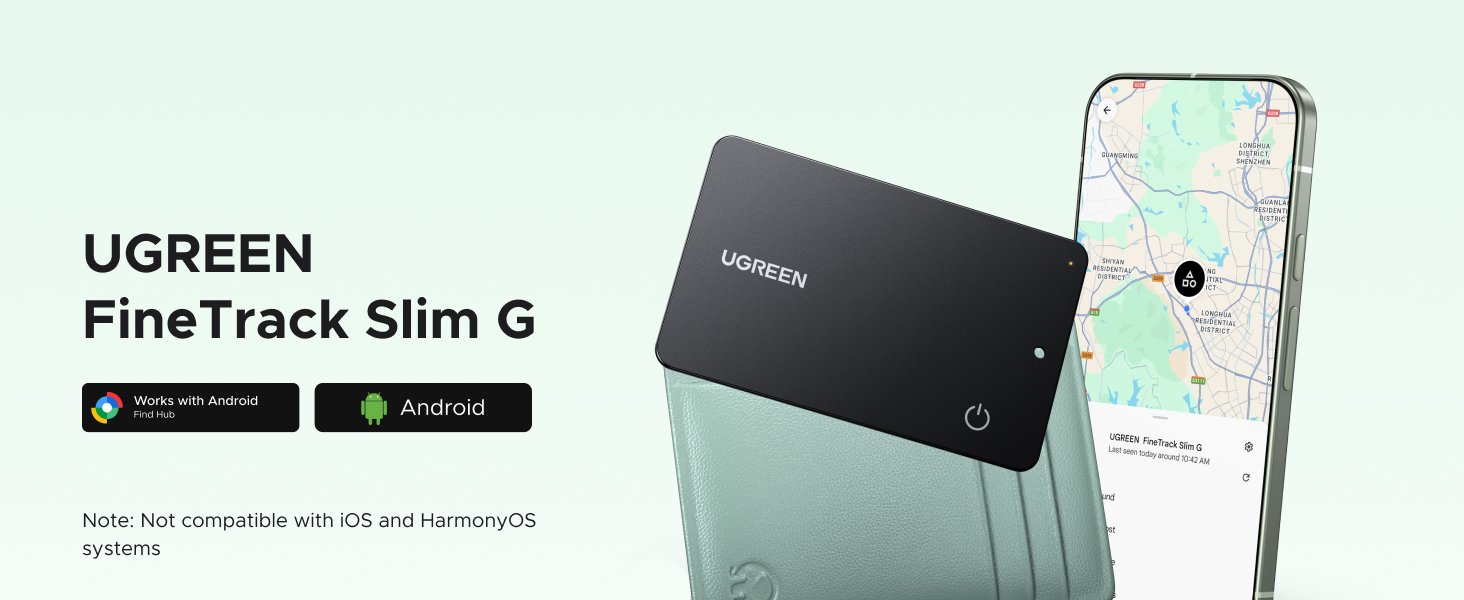
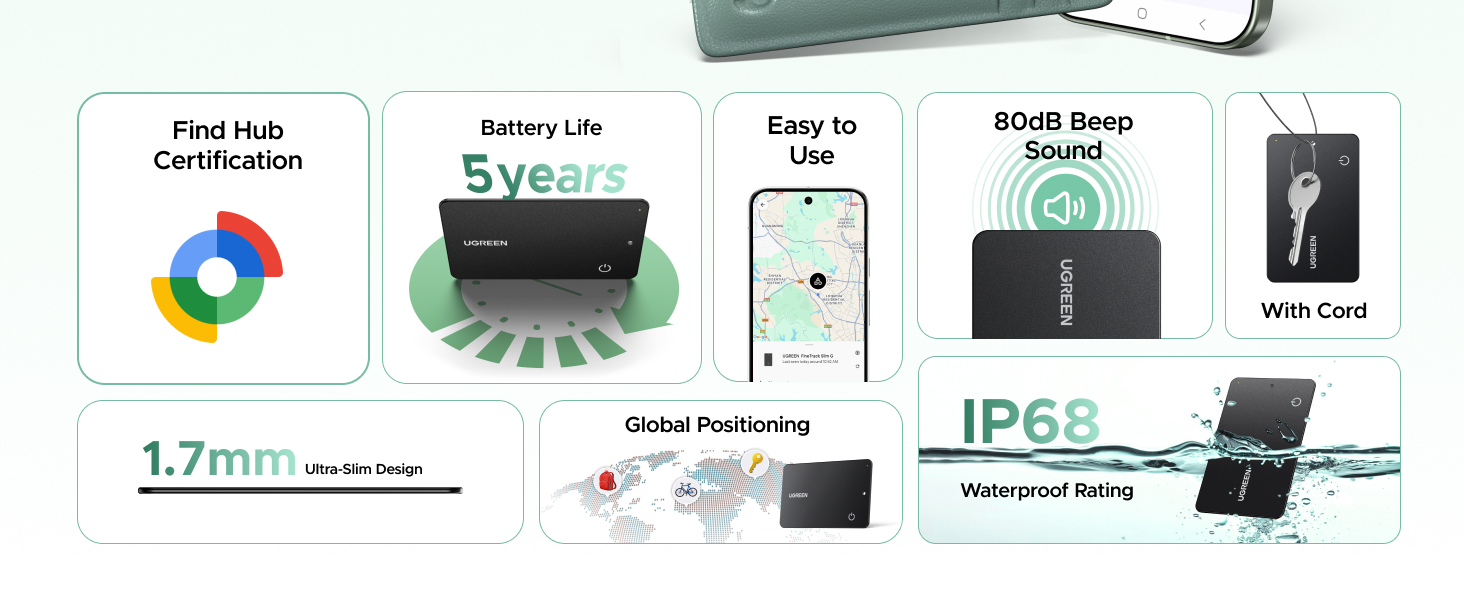
Android tracker
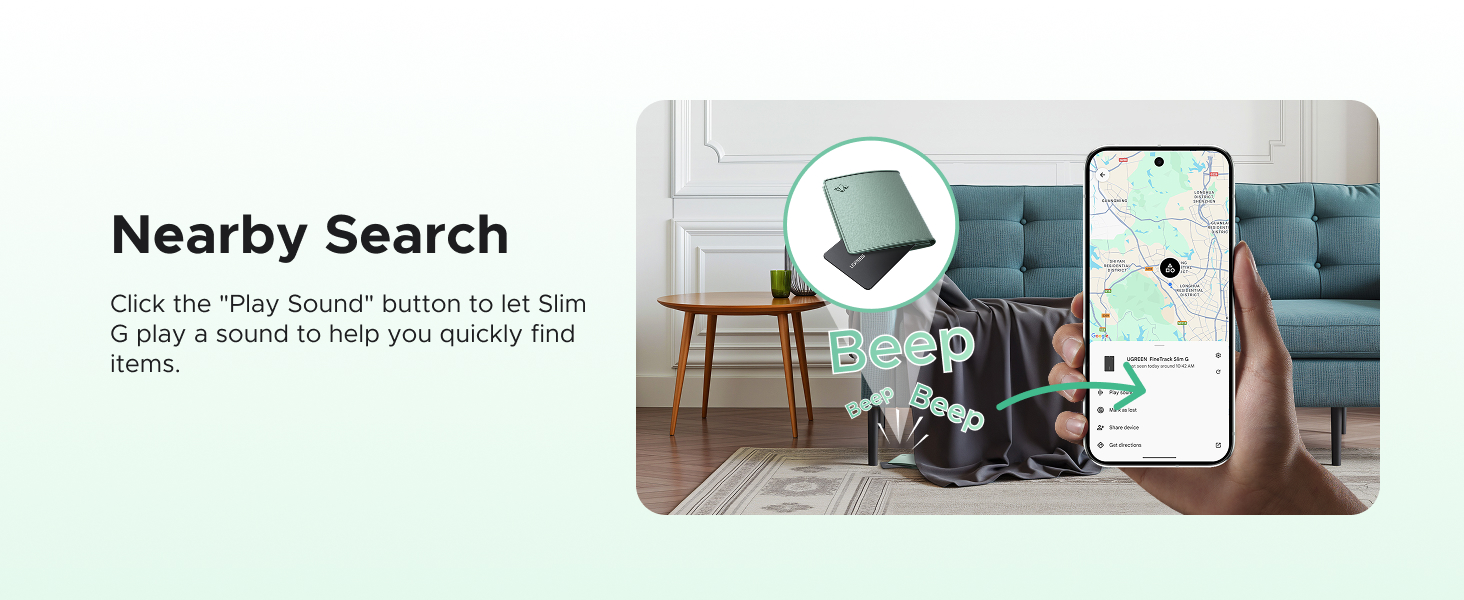
Android tracker
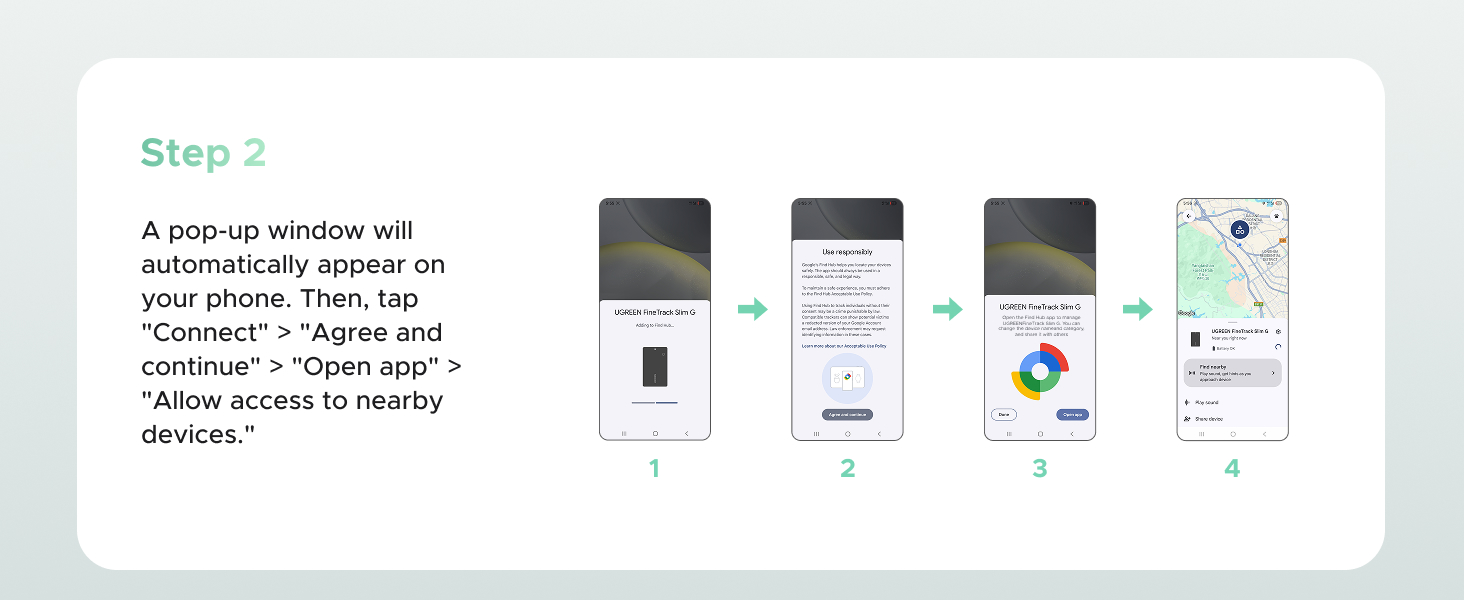
Connection Guide How do I successfully connect my phone to the tracker?
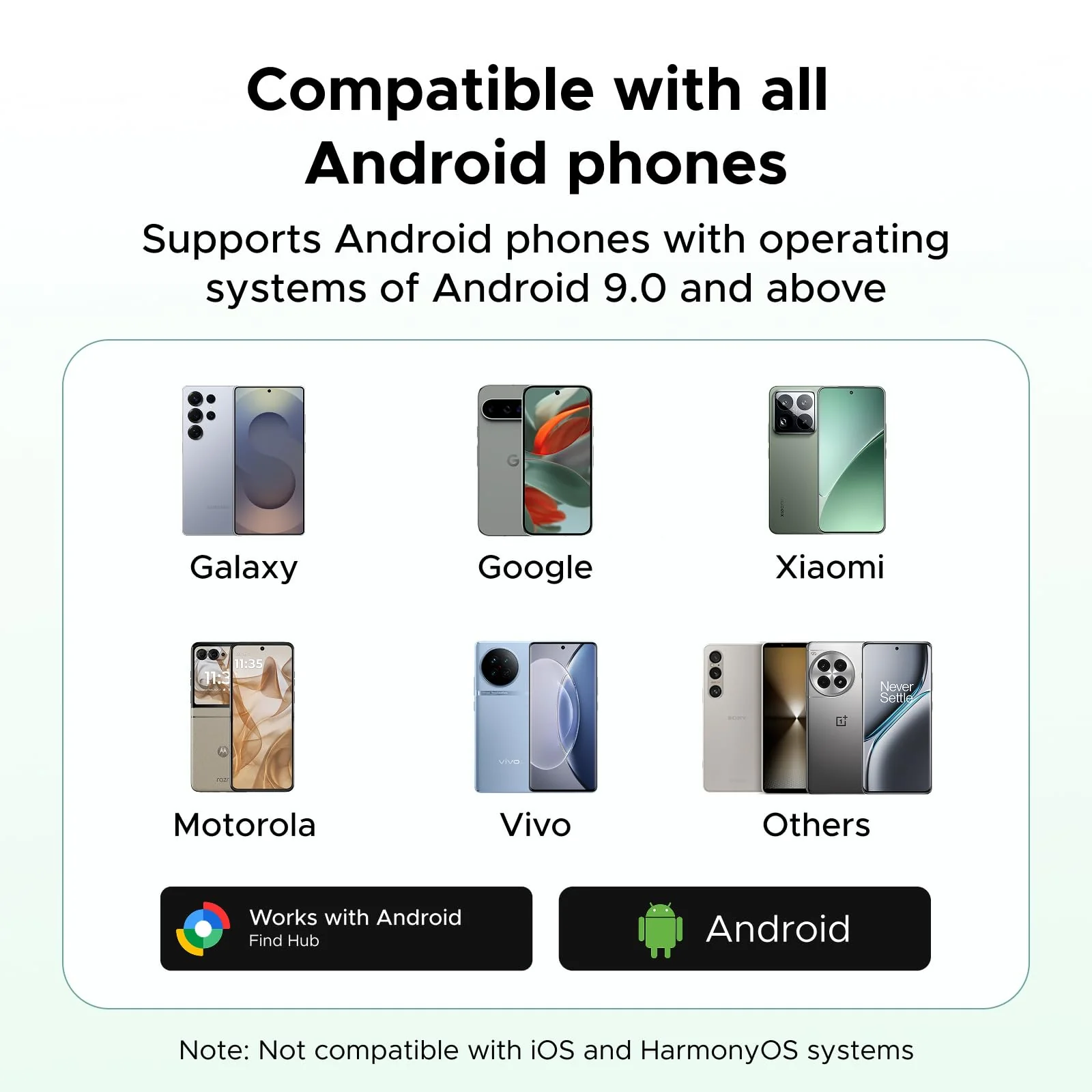
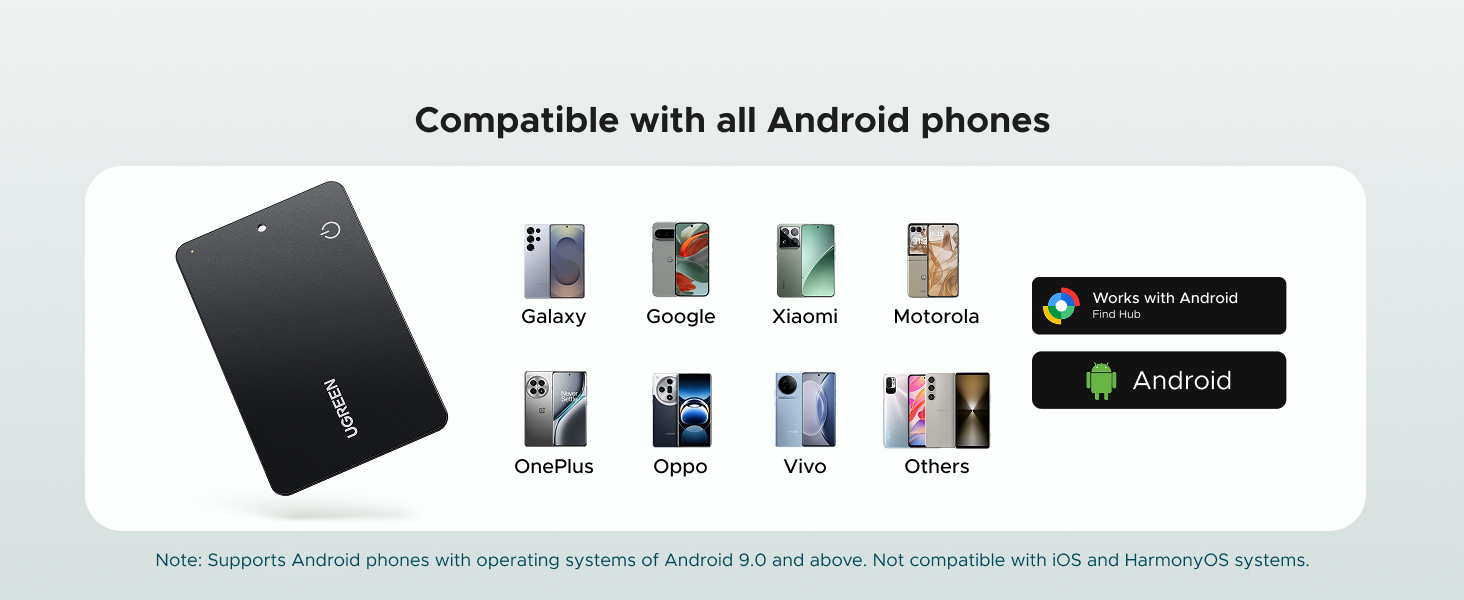
1. Please make sure your Android phone supports Android 9.0 or above.
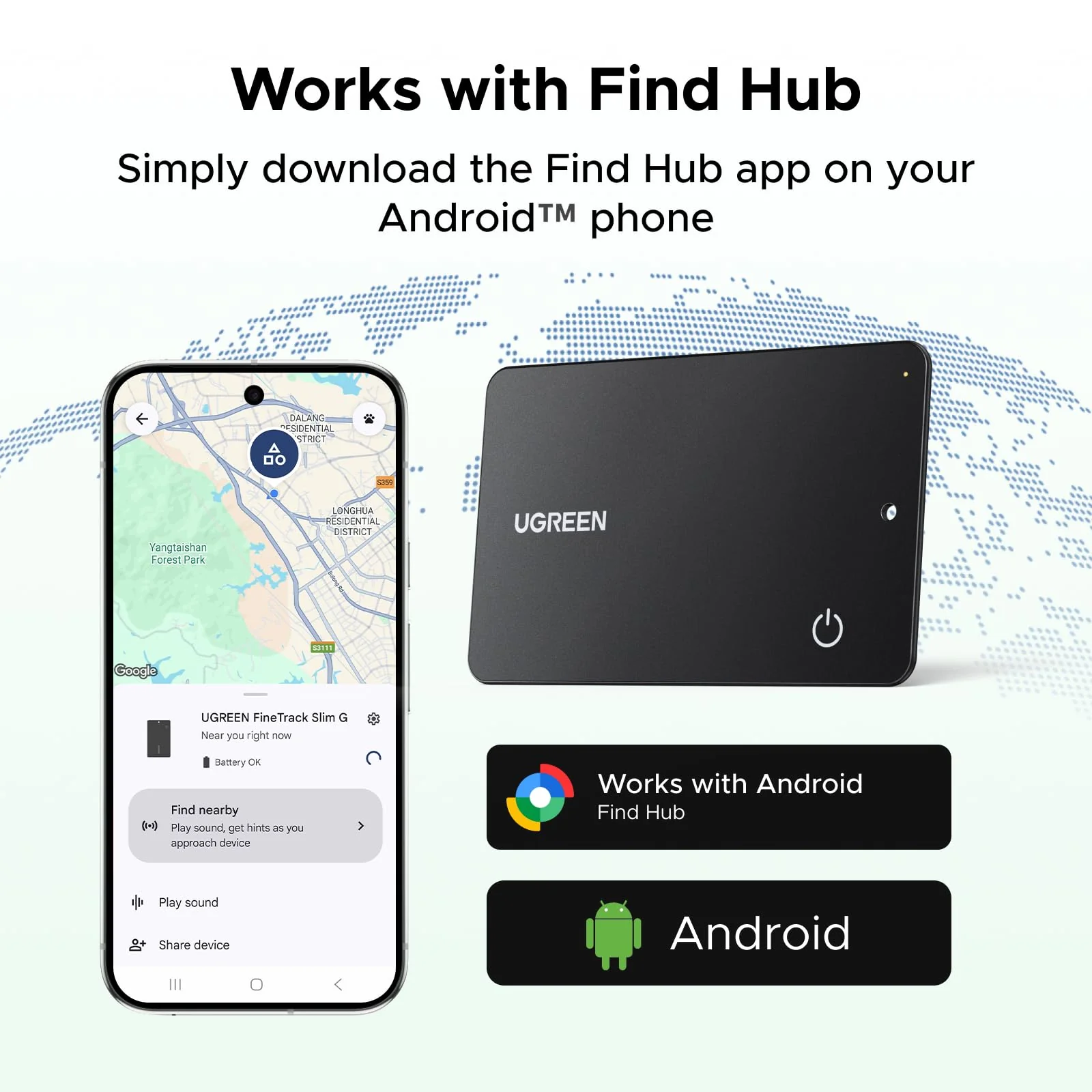
2. To ensure the pop-up appears correctly on your Android phone, please make sure your Google Play Services and Google Find Hub are updated to the latest versions.
3. What should I do if the tracker still can't connect after the pop-up appears?
A. If you accidentally exit the pop-up screen after the pop-up appears, please wait for the next pop-up, or wait 5 minutes or restart your phone before the pop-up appears again.
B. Click "Close" after the pop-up appears. This will prevent the pop-up from appearing again. You will need to wait 5 minutes or restart your phone before the pop-up appears again.
C. On some phones, the pop-up may appear normally for a while but then suddenly stop. Even if waiting 5 minutes doesn't work, restarting the phone may restore the connection.
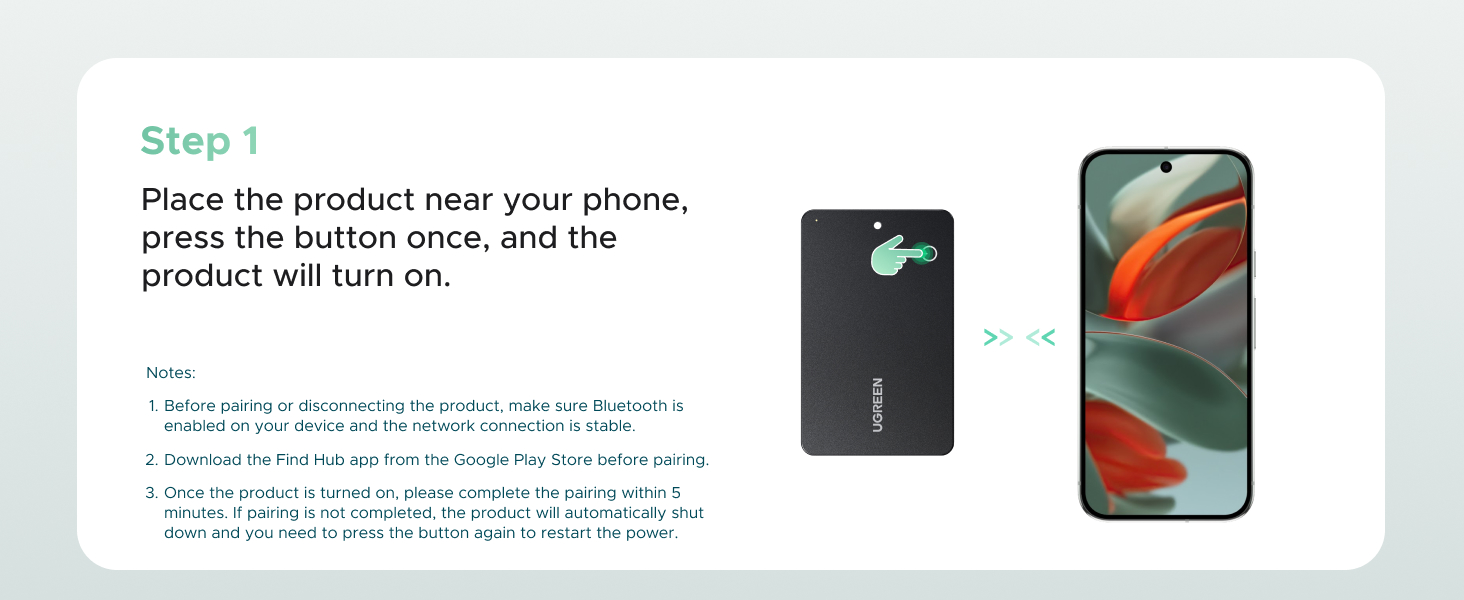
Quick Operation Guide Power On: Press the button once to power on. You will hear four consecutive "di" prompts (power indicator flashes).
Shut Down: Double-press the button twice, then hold it for 5 seconds until you hear a "di" sound. Release to hear two "di" prompts, indicating successful shutdown. First-time Power On: Automatically shuts down after 5 minutes if no binding record exists.
Pairing: Android phones will receive a pop-up pairing prompt. Select "Pair," then follow instructions to click "Accept & Continue."
Successful Pairing: Continuous "di-di-di" prompts indicate successful connection.
Factory Reset: 1)Double-press the button twice to hear one "di" prompt. 2)Hold the button for 5 seconds until you hear a "di" every second. 3)Continue holding until two "di" prompts sound, then release. 4) "di" prompts confirm successful reset.
Incompatible Device List Note: Due to the recent Google system update, some phones (Motorola Moto G Stylus 5G, Motorola Edge, TCL 30XL, TCL 30Z, Google Pixel 8) may experience temporary incompatibility. We are working on optimization and will update the compatibility list once resolved.
$29.99
UGREEN FineTrack Slim G Smart Finder (Android Only)
$29.99

Product Information

Shipping & Returns

Description

Android tracker
Android tracker
Connection Guide How do I successfully connect my phone to the tracker?
1. Please make sure your Android phone supports Android 9.0 or above.
2. To ensure the pop-up appears correctly on your Android phone, please make sure your Google Play Services and Google Find Hub are updated to the latest versions.
3. What should I do if the tracker still can't connect after the pop-up appears?
A. If you accidentally exit the pop-up screen after the pop-up appears, please wait for the next pop-up, or wait 5 minutes or restart your phone before the pop-up appears again.
B. Click "Close" after the pop-up appears. This will prevent the pop-up from appearing again. You will need to wait 5 minutes or restart your phone before the pop-up appears again.
C. On some phones, the pop-up may appear normally for a while but then suddenly stop. Even if waiting 5 minutes doesn't work, restarting the phone may restore the connection.
Quick Operation Guide Power On: Press the button once to power on. You will hear four consecutive "di" prompts (power indicator flashes).
Shut Down: Double-press the button twice, then hold it for 5 seconds until you hear a "di" sound. Release to hear two "di" prompts, indicating successful shutdown. First-time Power On: Automatically shuts down after 5 minutes if no binding record exists.
Pairing: Android phones will receive a pop-up pairing prompt. Select "Pair," then follow instructions to click "Accept & Continue."
Successful Pairing: Continuous "di-di-di" prompts indicate successful connection.
Factory Reset: 1)Double-press the button twice to hear one "di" prompt. 2)Hold the button for 5 seconds until you hear a "di" every second. 3)Continue holding until two "di" prompts sound, then release. 4) "di" prompts confirm successful reset.
Incompatible Device List Note: Due to the recent Google system update, some phones (Motorola Moto G Stylus 5G, Motorola Edge, TCL 30XL, TCL 30Z, Google Pixel 8) may experience temporary incompatibility. We are working on optimization and will update the compatibility list once resolved.